
Set a beat, then check your pitch
Start by setting the metronome tempo and beats per bar. When you need to check tuning, switch to the tuner and play one note at a time.
This guide is based on screens and menus in the app project. The layout and available features may differ in your installed version.
1. Choose a BPM and listen to a bar
BPM is the number of reference beats per minute. Enter the tempo marked on your music, or start at a speed at which you can play a bar comfortably.
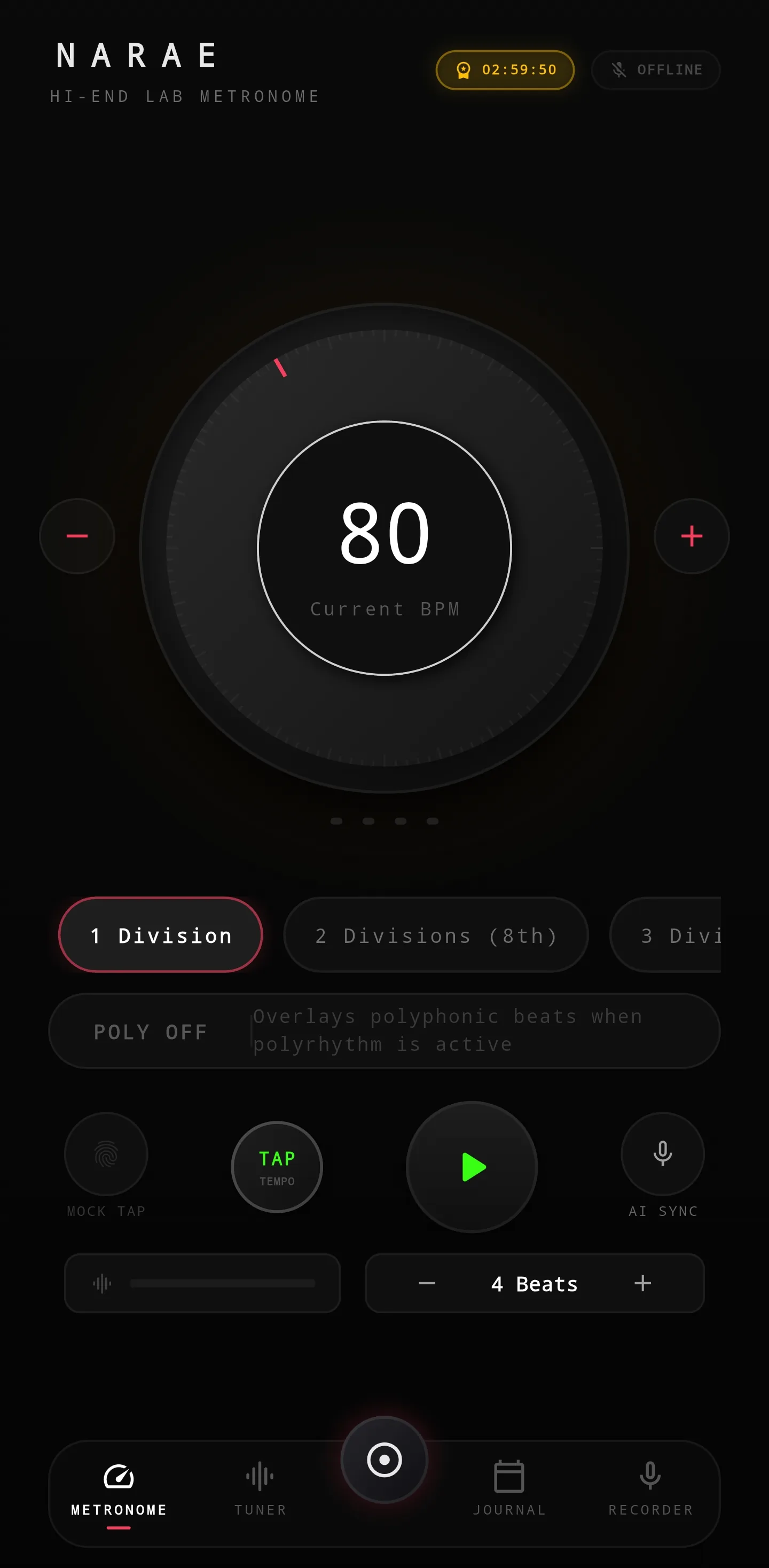
Tap the central BPM number to open direct entry. Choose a value within the range shown in the dialog, then set the number of beats per bar. Count a bar before playing to check that the pattern matches your music.
- On the metronome screen, tap the central BPM number and enter a tempo.
- Choose the number of beats per bar in the beat settings.
- Start playback and listen for the first-beat accent and the point where the bar repeats.
- If you keep falling behind, lower the tempo and practise the same passage again.
2. Use subdivisions for smaller note values
Subdivision adds smaller clicks between the reference beats. A two-part subdivision divides each beat into two; a triplet divides it into three. BPM and subdivision are separate settings.
First listen to the basic beat to establish the flow. Add the subdivision you need for a difficult rhythm, then return to the basic beat and check whether you can keep the same tempo.
- Open the metronome subdivision setting.
- Choose a two-part, triplet, or four-part subdivision that matches the written rhythm.
- Count the clicks within each beat before playing the passage.
3. Check one note at a time in the tuner
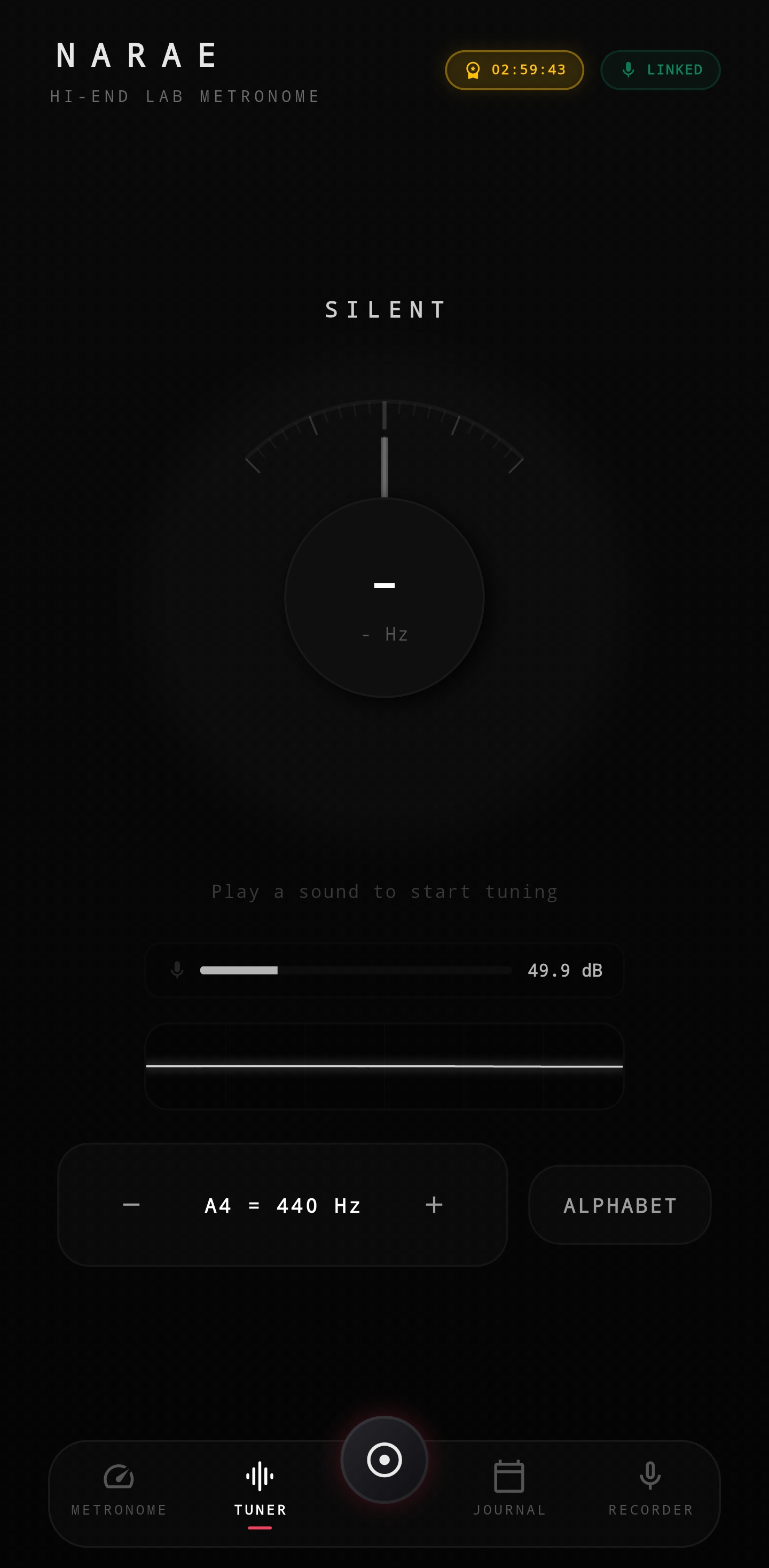
The tuner displays the note and frequency detected through the microphone. Play one steady note rather than several notes together, and reduce nearby conversation or other instruments while checking it.
Check the note name first, then use the cents display to assess the pitch difference. Centring the needle on the wrong note can leave you tuned to a different target. If your ensemble uses a particular A4 reference, check that your setting matches it.
- Open the tuner and choose its microphone tuning view.
- Allow microphone permission if you want to use microphone tuning.
- Play one note, confirm that its name matches your target, and then check the cents display.
- If you change the A4 reference, check the setting again at your next practice session.
If practice does not go as expected
Playback is running, but I cannot hear the clicks.
Check both the in-app metronome volume and your device media volume. Check whether audio is being sent to Bluetooth earphones or another output. If only particular beats are silent, check whether those beats are muted.
The tuner is not showing a note.
Check Narae microphone permission in your device settings, then reopen the tuner. Keep the microphone uncovered and play one steady note. Very quiet input or several competing sounds may make pitch detection difficult.
Another tuner shows a different result.
First check that both tuners use the same A4 reference and selected instrument or target note. Compare the same sustained note and check whether the devices are showing different octaves.
The menus in my app do not match this guide.
Tell product support your installed app version and the screen you were looking for. The device model and steps leading to the problem can help with investigation. You do not need to send recordings or sensitive personal information.